Blog
My technical blog
Azure app services with Docker
by Jacob Lorenzen
Using Docker, Visual Studio Team Services (VSTS) and app services in Azure you can setup websites with continuous integration and deployment.
Dockerfile
The first step is to have a simple dockerfile. In this example I have chosen to use a create-react-appas it is not really important for this post what the app is.
My Dockerfile is setup like this:
FROM node:7.4.0
MAINTAINER Jacob Lorenzen

WORKDIR /app
COPY package.json /app
RUN npm install

COPY public public
COPY src src

RUN npm run build
WORKDIR /app/build

RUN npm install -g http-server

EXPOSE 8080
ENTRYPOINT http-server
The dockerfile runs npm install and afterward npm run build which produces a static index.html file which can be hosted in a docker container using http-server node module. To get to the server port 8080 is exposed.
Visual Studio Team Services
The next step is to setup a build in VSTS. This can be done using the task for building and pushing a dockerfile.
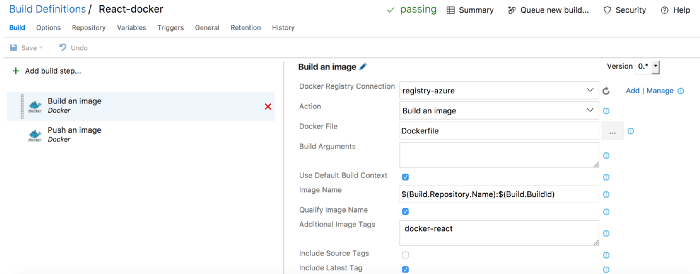
You have to setup a connection to your Azure docker registry but that is straightforward and I have not chosen to show that here.
The build part is equal to running the following command on your dev machine:
docker build -t name.azurecr.io/react-docker:latest .
The next step is to push the image to the registry.
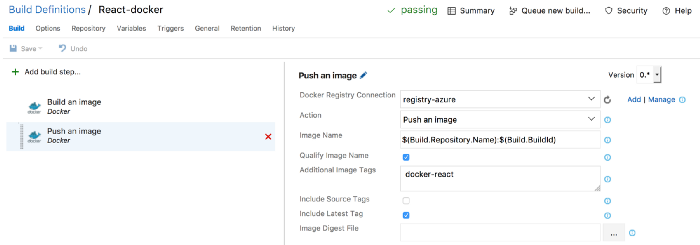
I make sure to tag the image with the latest tag.
One thing to note is that you need to use the build host for linux to be able to run docker commands. This setting can be found under General
In this trival example I didn’t use the release management part of VSTS. It is also possible to create a connection to a Docker host from VSTS. Which would make more sense for release definitions.
Now that the image is pushed to registry in Azure we can use it for our site.
App services
To setup a site in Azure we need to use Web App on Linux.
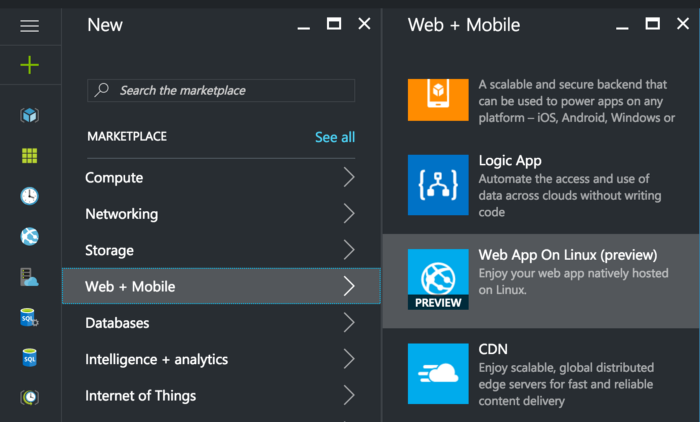
After selecting this option you need to specify where the image is located and how to run it:
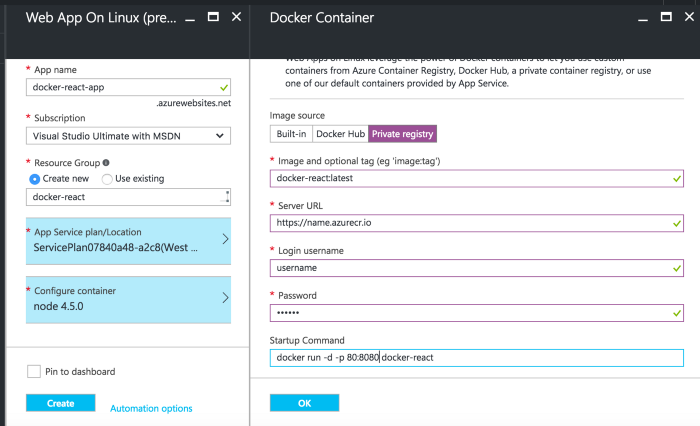
In the startup command I specify to run the image detached and map port 80 to the internal port 8080 in the docker host.
After a while the web app is up and running and you can browse the site.
Conclusion
With the support for Docker in both VSTS and Azure you can quickly leverage this for web app hosting. This setup works fine for simpler web apps.
All the code for this example can be found here.
tags: azure - docker